













An Arduino servo motor allows you to control the position of a motor shaft using simple programming instructions. Unlike a standard DC motor, which continuously rotates when power is applied, a standard servo motor moves to a specific angular position based on the control signal it receives.
In this guide, you will learn how to connect a servo motor to an Arduino board, understand its power requirements, and control its position using Arduino code. We will build two practical examples: a potentiometer-based servo controller (Knob) and an automatic servo movement program (Sweep).
1. Hardware Required
Before connecting the servo motor to Arduino, prepare the following components:
| Component | Quantity | Purpose |
|---|---|---|
| Arduino Uno | 1 | Main controller |
| Servo motor | 1 | Controls angular movement |
| 10kΩ potentiometer | 1 | Adjusts servo position manually |
| Jumper wires | As needed | Connects circuit components |
| Breadboard | 1 | Makes circuit connections easier |
| Capacitor | 1 | Helps stabilize the servo power supply when needed |
| External power supply | 1 (if required) | Provides power to the servo motor |
[Image 1: Hardware Components]
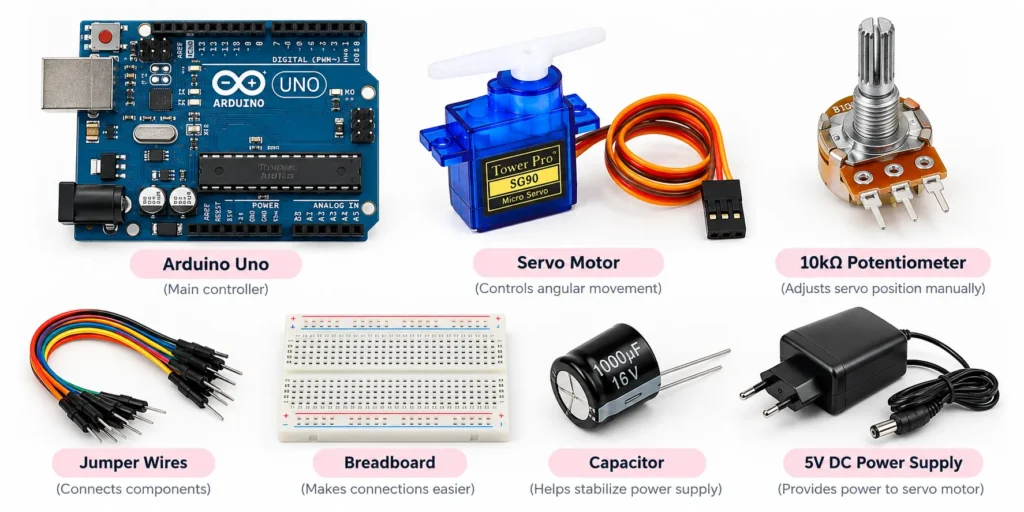
Suggested image: Arduino Uno, servo motor, 10kΩ potentiometer, breadboard, jumper wires, capacitor and external power supply arranged together.
The Arduino Uno acts as the main controller, while the servo motor responds to the position commands sent by the board. The potentiometer provides manual input for the Knob example. An external power supply may be required depending on the servo motor’s current requirements.
2. Powering Servo Motors
Servo motors require a suitable power supply to operate correctly. Their voltage and current requirements depend on the motor’s size, model and mechanical load.
A servo motor generally consumes different amounts of current under different operating conditions:
- Idle current: The current consumed when the servo is powered but not actively moving.
- Running current: The current consumed while the servo motor is moving.
- Stall current: The current drawn when the motor is unable to move because its shaft is blocked or overloaded.
For example, a small hobby servo may operate from a 4.8V–6V supply, while larger servo motors may require different voltage and higher current ratings. Always check the manufacturer’s datasheet before selecting a power supply.
When a servo motor starts moving or experiences a mechanical load, its current consumption can increase significantly. If the Arduino board cannot provide sufficient current, the servo may move unpredictably or cause the board to reset.
For this reason, use a separate regulated power supply when the servo’s current requirements exceed what the Arduino board can safely provide.
When using an external supply:
- Connect the positive supply terminal to the servo’s positive power wire.
- Connect the negative supply terminal to the servo’s ground wire.
- Connect the external supply ground to Arduino GND.
- Connect the servo signal wire to the Arduino control pin.
A capacitor connected across the servo power supply can also help reduce voltage fluctuations caused by sudden changes in current.
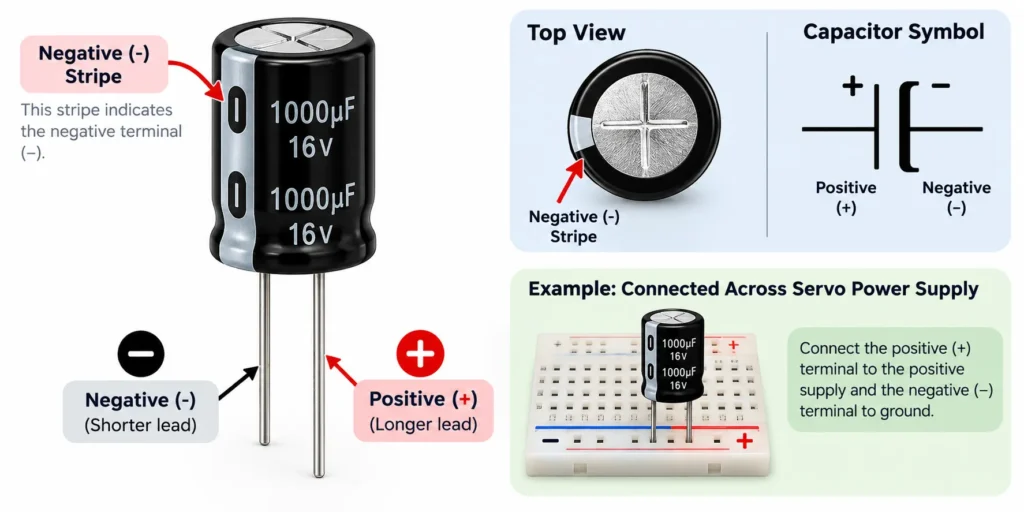
Suggested image: An electrolytic capacitor showing its positive (+) and negative (−) terminals, with the negative polarity stripe clearly identified.
When connecting an electrolytic capacitor, observe its polarity carefully. Connect its positive terminal to the positive supply and its negative terminal to ground. Select a suitable capacitance and voltage rating for the power supply and circuit requirements.
3. Circuit
A standard hobby servo motor has three wires: power, ground and signal. Each wire performs a different function.
| Servo Wire | Typical Colour | Connection |
|---|---|---|
| Power | Red | Positive supply |
| Ground | Brown or Black | GND |
| Signal | Orange, Yellow or White | Arduino digital pin |
The power wire supplies voltage to the servo motor, the ground wire provides the common electrical reference, and the signal wire receives position commands from the Arduino.
For both examples in this guide, we will use digital pin 9 for the servo signal.
Knob Circuit
In the Knob example, a potentiometer is used to control the servo motor’s position manually.
Connect the two outer potentiometer terminals to 5V and GND on the Arduino board. Connect its middle terminal to analog pin A0.
Next, connect the servo motor’s power and ground wires to a suitable supply, and connect its signal wire to digital pin 9.
Knob Circuit Connections
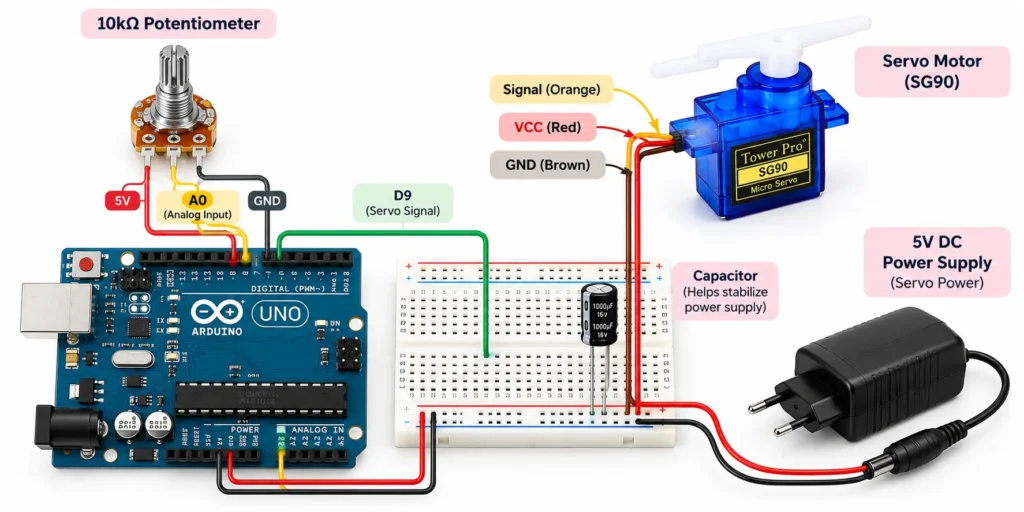
Suggested diagram: Arduino Uno connected to an SG90 servo motor and a 10kΩ potentiometer through a breadboard. Show all power, ground and signal connections clearly.
Sweep Circuit

For the Sweep example, the potentiometer is not required. The Arduino controls the servo motor automatically through a programmed sequence.
Connect the servo signal wire to digital pin 9. Connect its power and ground wires to a suitable power supply. If an external supply is used, connect its ground to Arduino GND.
Sweep Circuit Connections
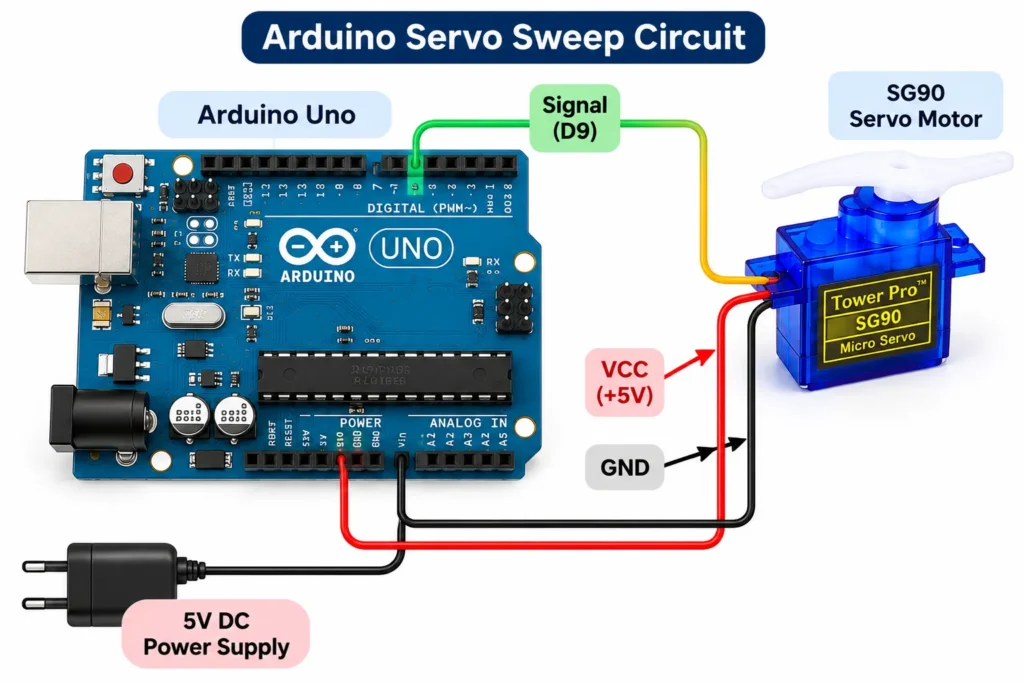
Suggested diagram: Arduino Uno connected to an SG90 servo motor through a breadboard, showing the three servo connections and an external supply if required.
4. Examples
After completing the circuit connections, upload the following programs to your Arduino board. Both examples use the Arduino Servo Library to control the servo motor.
Knob
The Knob example controls the servo motor’s position using a potentiometer. As you rotate the potentiometer, the Arduino reads its analog value and converts it into an angle between 0 and 180 degrees.
Arduino Servo Knob Code
#include <Servo.h>

Servo myservo;

int potpin = A0;
int val;

void setup() {
  myservo.attach(9);
}

void loop() {
  val = analogRead(potpin);
  val = map(val, 0, 1023, 0, 180);

  myservo.write(val);

  delay(15);
}
How the Code Works
#include <Servo.h>includes the Servo Library.Servo myservo;creates a servo object.potpin = A0selects the potentiometer input pin.myservo.attach(9)connects the servo object to digital pin 9.analogRead(potpin)reads the potentiometer value.map()converts the analog reading into an angle between 0 and 180 degrees.myservo.write(val)sends the position command to the servo.delay(15)adds a short delay before the next reading.
When you rotate the potentiometer, the servo motor follows the corresponding position command.
Sweep
The Sweep example moves the servo motor automatically from 0 to 180 degrees and then returns it to its starting position. Unlike the Knob example, this program does not require a potentiometer.
Arduino Servo Sweep Code
#include <Servo.h>

Servo myservo;

int pos = 0;

void setup() {
  myservo.attach(9);
}

void loop() {

  for (pos = 0; pos <= 180; pos += 1) {
    myservo.write(pos);
    delay(15);
  }

  for (pos = 180; pos >= 0; pos -= 1) {
    myservo.write(pos);
    delay(15);
  }
}
How the Code Works
#include <Servo.h>includes the Servo Library.Servo myservo;creates a servo object.myservo.attach(9)connects the servo to digital pin 9.int pos = 0initializes the servo position variable.- The first
forloop increases the position from 0 to 180 degrees. myservo.write(pos)sends each position command to the servo.delay(15)controls the interval between position commands.- The second
forloop decreases the position from 180 back to 0 degrees.
The two loops repeat continuously, making the servo shaft move back and forth automatically.
5. Conclusion
Controlling a servo motor with Arduino is a straightforward way to introduce position control in electronics projects. By using the Servo Library, you can move a servo to a specific angle with simple programming instructions.
The Knob example provides manual position control through a potentiometer, while the Sweep example demonstrates automatic movement between two positions. With the correct wiring and a suitable power supply, both examples provide a practical starting point for working with Arduino servo motors.